Your Collection
Add, organize, and value the cards and comics you own.
The Collection is where everything you own lives. This page covers the things you'll do most: adding items, keeping them organized, and understanding the value Sereal shows you.
Scopes on this surface
The Collection surface — where Inventory in the nav lands — is organized by a scope switcher at the top:
- Collection — your sorted, reviewed holdings (the default).
- Intake — the triage queue for owned product you haven't sorted yet, and where imports and photo uploads arrive. See Importing.
- All Owned — everything you own across scopes in one list.
- By Box — the same items grouped by their box.
Switching scopes keeps you on the same surface, so you never lose your place.
Add a card or comic
From Collection, choose Add Card or Add Comic.
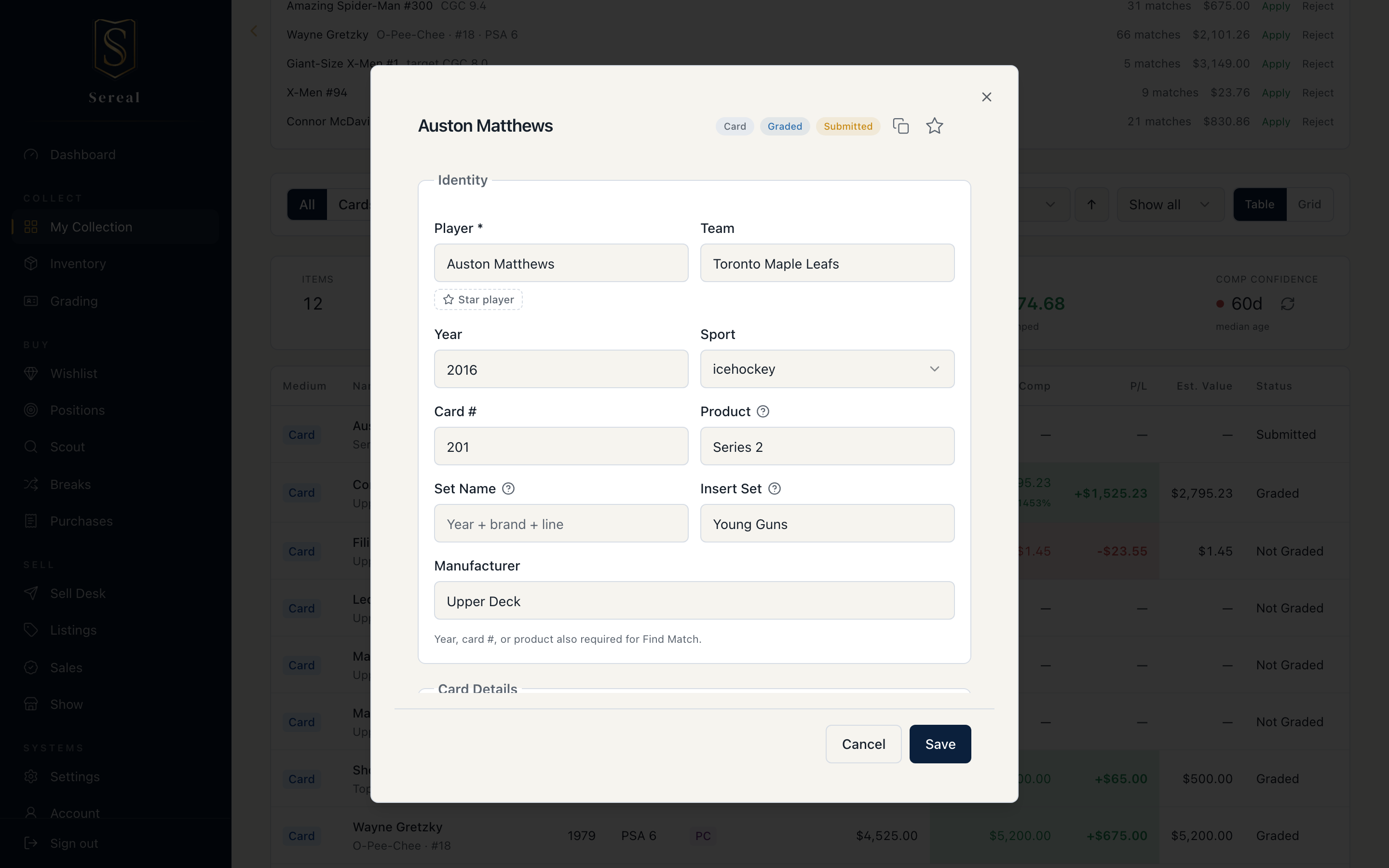
- Cards capture player, year, set/product, card number, parallel, serial number, and grade (graded or raw).
- Comics capture title, issue number, publisher, and grade — with a pressing toggle for books headed to a presser before grading.
Use Save + Add Another when you're entering a stack, and Save + Done for a one-off. As you type, fields like player, team, and manufacturer suggest values you've used before, so your data stays consistent.
Find things fast
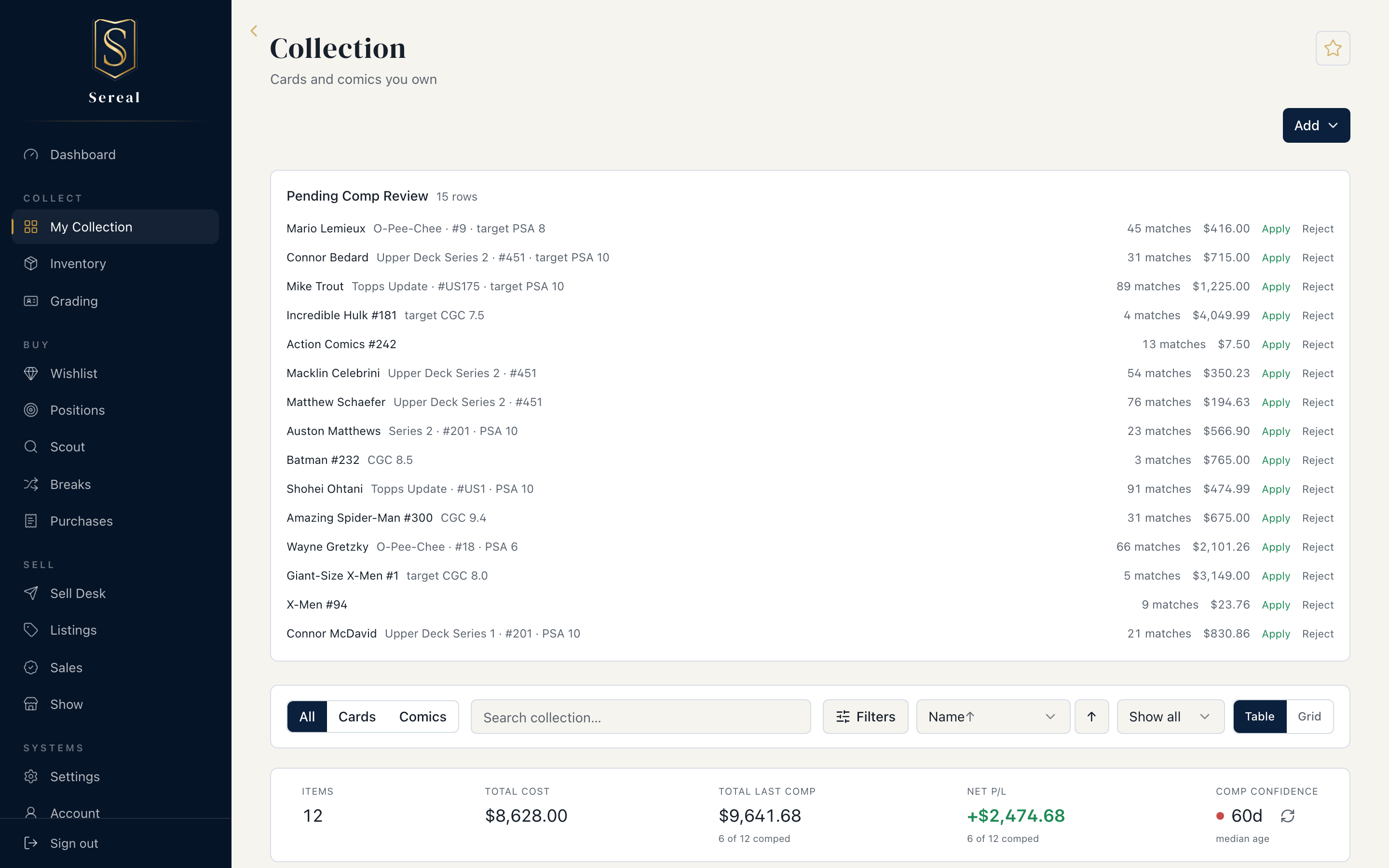
- Medium toggle — switch between All, Cards, and Comics.
- Search and filters — narrow by sport, numbered/parallel, condition, era, publisher, and key issues.
- Stale comps / Needs detail — quick filters that surface items whose comp has gone stale or that are missing key metadata, so you can clean them up in a pass.
- Per page — control how many rows load at a time.
- Table or grid — the grid is image-led for browsing; the table is dense for working.
Switching the medium toggle resets the other medium's filters on purpose — phantom filters you can't see are worse than re-applying the ones you can.
Organize with boxes
Every item belongs to a box — Rookies, PC, Graded, Listed, a Longbox, and so on. Boxes are color-coded throughout the app, so a glance tells you where something lives. Manage your box list in Settings.
Understand the value Sereal shows
Each item carries two numbers that should never be confused:
- Cost basis — what you paid. Fixed.
- Current value — derived from recent sold comps. Updated as comps refresh.
Conditional formatting flags when an item's last comp drifts from its cost, and
when a comp has gone stale — your cue to refresh it. Items pulled from a sealed
box show a $0 cost basis because the box itself is already counted in your
Spend Log; this keeps Total In from double-counting.
Example cards
A brand-new account starts with two example cards — a raw Luka Doncic Prizm and a graded Ken Griffey Jr. They exist so you can see how Sereal works before you've entered anything: open the raw one and the Grading Flip Check is already filled in with comps, population, and a real recommendation.
They're labeled Example wherever they appear, and they never count as yours:
- Excluded from every total — Items, Total Cost, Net P/L, and your dashboard figures. On a new account the summary bar reads Items 0 even though two rows are listed below it. That's intentional.
- Excluded from exports, worklists, the Sell Desk, and duplicate detection, so importing your own Luka Prizm won't be flagged as already owned.
- Not editable, and not individually deletable.
Getting rid of them
Use Remove sample cards in the Collection toolbar. It's there for as long as the examples exist — including after you've started adding your own items — so you don't have to clear them before getting started.
Removal is permanent. The examples won't come back on your next visit, and there's no way to restore them, so remove them when you're done looking rather than as a first step.
One thing that surprises people: the prompt on the empty dashboard disappears once you add your first item. That's expected — the panel is part of the empty state. The Remove sample cards button in the Collection toolbar stays put.
How the Intake queue is organized
One queue, whatever the card came from. Cards from a CSV or COMC import, photos you took with Capture, and items you typed in by hand all land in the same list. There is no per-import view: anything captured or added by hand never belonged to an import in the first place, so filtering by one would only ever show you part of what was waiting. Bulk actions apply to the whole queue.
Interest tiers decide how much card you see. Each card is placed in High Interest, Moderate or Low Interest. High and Moderate get a full card with photo, details and actions; Low Interest collapses to a compact one-line row so a long tail of cheap cards doesn't bury the ones worth your time. A card's metadata signal score sets the tier, and its value can only raise it — an expensive card with thin metadata never hides in Low Interest. A price check still waiting on your decision counts as value here, so a high-value pending result pulls the card up.
Within a tier, the highest value comes first. Ordering follows the value shown on the row — if the card is displaying a waiting price check, that's the number it's ranked by. Cards with no value fall back to their signal score, and cards tied on both keep a stable order so nothing jumps around between refreshes.
Intake: reviewing pending comps
When comps refresh, results that need attention land in Intake for a quick look before they change your item — because comp data isn't always reliable (few or no recent sales, an AI-misread card number, or a different parallel). Some results carry a suggested value; others found no or too few qualifying sales to suggest one.
Each result shows one of three outcomes:
- Ready to apply — enough matching sales; safe to apply in one click.
- Needs review — flagged as worth a look, for example when the value drifts from other recent sales.
- No or too few matches — not enough qualifying sales to suggest a value confidently.
You can work through these from either direction, and both stay in sync.
On the card itself. Any Intake card with a pending result shows it inline on its own row — the suggested value, how many sales back it, and one action: Apply when the match is strong, Review when it needs a second look, Dismiss when nothing usable turned up. While a result is pending, that row hides its saved value and its Refresh button, since re-checking a card you haven't decided on yet won't help. Cards matched by AI text always ask for a review first rather than offering one-click Apply.
In the Comp exceptions panel. The panel at the top of the list groups everything pending, with a summary of how many results are waiting and how many of those need a judgment call. It starts collapsed and remembers whether you left it open or closed for the rest of your session. It shows only results belonging to the tab you're on.
Depending on the result, you may be able to Apply, Review, or Dismiss:
- Apply — updates the item's current value from the comp and clears its Stale flag.
- Review — opens the matching sales so you can inspect them before deciding.
- Dismiss — sets this suggestion aside without changing your item's saved comp value. For roughly 30 days, automatic and bulk comp refreshes skip the item before reconsidering it; refresh the item manually to reconsider it immediately.
Item detail
Open any item to edit every field, upload front/back photos, verify a PSA or CGC cert, and follow the Comp Link straight to the matching eBay sold search.
Next
When you're ready to start acquiring, head to Scouting & deals.